TechTime Features

Whole Day Recording
From the moment your Techs arrive for work their day is recorded detailing every action performed throughout the working day.
Each clocking action is ended by starting a new action, this ensures there are no gaps or any missing time.
Example Day
08:28 - CLOCK IN Tech is clocked in and clocked onto the auto-idle time activity
08:36 - JOB (72356) Auto-idle is ended and job is started
11:00 - BREAKS Clocking onto break ends the job clocking and begins recording how long is spent on a break
11:16 - JOB(72356) Back on to previous job ending the break activity
11:41 - IDLE Job completed and is ended by clocking to idle time (between jobs)
11:55 - JOB (72352) Tech clocks on to next job
13:01 - CLOCK OUT Clocking out for lunch ends the current activity in this case a job and clocks the tech out
14:00 - CLOCK IN Back from lunch and and we clock in, this puts the tech on to auto-idle
14:00 - JOB (72352) Tech clocks back onto the previous unfinished job and continues work
17:32 - CLOCK OUT At the end of the working day the tech clocks out which also ends the current activity.
Job Time Totals
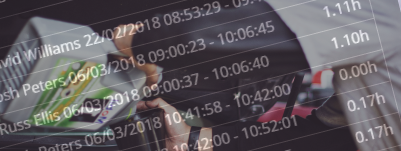
TechTime provides a detailed view of every clocking made to any job at the click of a button enabling you to easily see how long has been spent and by which techs.
The display shows each clocking start and end time, the techs name and a total time for the individual clocking.
There is also a grand total and a total for each tech.
Worked Hours Reporting
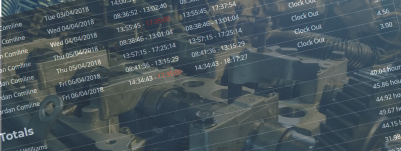
As TechTime tracks the whole working day, reports can be run that detail the working hours between dates, this makes calculating the hours to pay your techs quick and simple.
The report can be run for individual techs or all at once detailing the start and end times of each day in the range and also providing totals for each tech.
Overtime Protection
Overtime is often necessary to keep the workload in check but do you want to be paying overtime when its not needed?
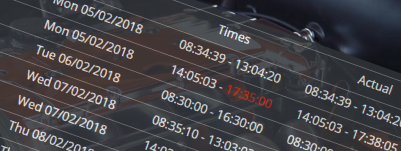
TechTime comes with overtime protection built in, Technicians are attached to shifts which detail the usual business hours. Allowances can be added to enable techs to clock in a few minutes early or even clock off a few minuets late without their hours being adjusted, its up to you.
A technician clocked on to a valid job will not have their times altered therefore allowing overtime to be earned.
Performance Monitoring
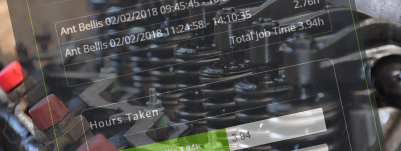
When viewing job times the total hours worked by each tech is displayed, sometimes it may not be possible to charge the customer for all the time worked for example if your tech is inexperienced in the repair he was doing.
TechTime allows you to adjust the values to the time you are actually charging so over time a picture of how well each tech preforms can be seen and actioned upon as needed.
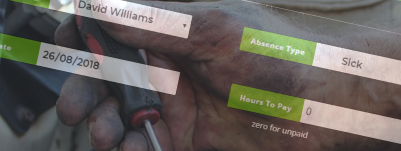
Absence and Holiday Tracking
Absence and attendance go hand in hand so its only natural we included a feature to record the times when your techs are not in work during the working week.
TechTime comes with a standard set of absence types and additional custom types can be added easily from the control panel.
By recording absences a full attendance report is kept enabling you to quickly see things like how many days holiday has been taken and how often someone is off sick.
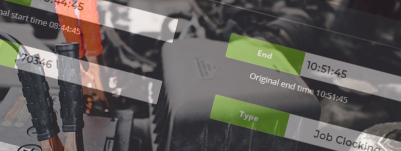
Manual Overrides
Mistakes can and will happen, a tech may realise they have been clocked on to the wrong job or may have simply forgotten to clock back off their break, each clocking can be adjusted as needed from the admin panel whilst retaining the original times for reference
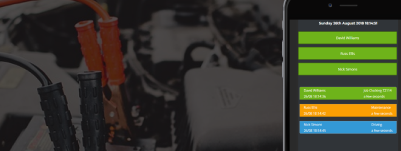
No Specialist Installation
TechTime runs in a web browser which means it can be used on Pc's Mac's Tablets and mobile phones.
Set up is fast and simple, designed to get you up and running in just a few minutes.
The system is comprised of two main parts, the admin section used by the office staff and the clock which is used by the Technicians.
Clocks are tied to your company data by a special access token that means once a clock has been set up it is automatically authorised and will not require user names and passwords, this is especially useful when used on a mobile phone or tablet.
Works With Any Workshop Software*
TechTime has been designed to run alongside any garage management system (Providing it uses incrementing job numbers)* As long as your current software uses job numbers then TechTime will integrate with it.
The admin panel allows you to specify a starting job number and how many beyond this is acceptable ie. 10. The system then recognises valid job numbers automatically and after each valid job number is used the next set become available helping to ensure techs don't use old or invalid job numbers either accidentally or on purpose.
Autowork Online Integration
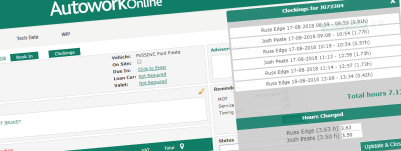
TechTime has developed a browser extension that runs within Google Chrome that can be securely linked to your TechTime app, this makes it possible to restrict available job numbers to only the open jobs on your Autowork online account. In addition the extension also brings the job time data right into the QJI screen where you need it with just the click of a button.
Once paired with Autowork online Techtime will also be able to provide a list of jobs available to the clocks showing vehicle reg and model so that techs no longer need to rely on having the job number to hand when clocking
Multi Clocks
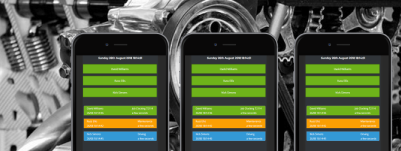
There is no limit to the number of clocks you can have, each will need to be linked to your TechTime account and each one can be customised to show only the Technicians you want.
You could have one main clock on a pc that shows all Technicians and then have a clock on a phone or tablet for each technician that just shows their details.
Each clock can be restricted by ip address so that it can only be used when connected to company wifi or left open so that it can be used anywhere there is an internet connection.
Enhanced Workshop Diary
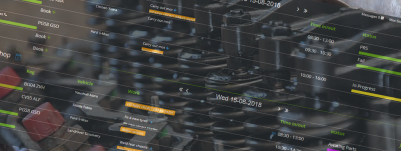
TechTime is currently developing an enhanced workshop diary that will manage your day to day booking and workload, as development continues more features will be added including live status from the clocks, EVH reporting and sub job time tracking